Managing the VIES API account via the client panel
This chapter provides detailed information describing the individual tabs and settings available in the customer account management panel.
Create account
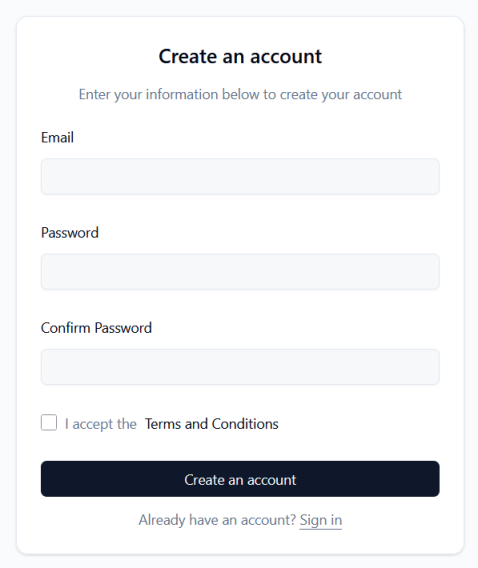
To create an account, you must provide an Email address, set a password (“Password“) and repeat it (“Confirm Password“), and then accept the Terms and Conditions.
Login to account
Login is done using the Email address provided during registration and a Password.
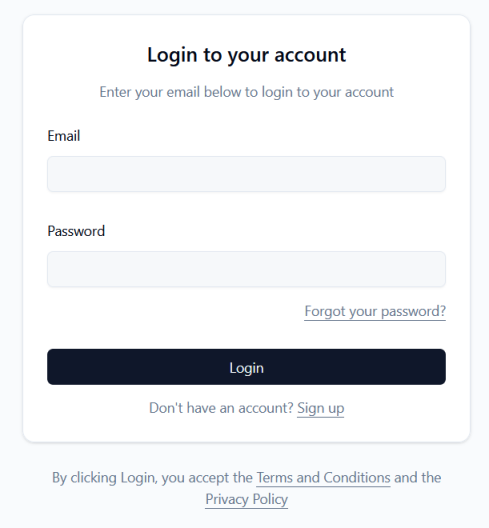
On the login screen, there is an option to recover a forgotten password (“Forgot your password?“):
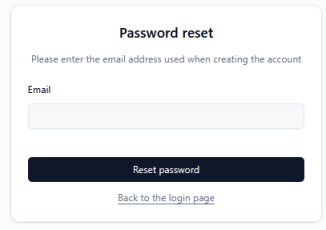
After entering the email address and pressing the Reset password button, the system will send a message to the specified email address enabling the user to reset the password.
Account Types
The Service offers two types of accounts:
Every new Service User is assigned a prepaid account type by default when creating an account.
A user’s account can be switched to postpaid if they have used the Service for at least three months and have at least an active Business plan.
To request switching to postpaid mode, please contact Customer Service.
Profiles – Completing company data
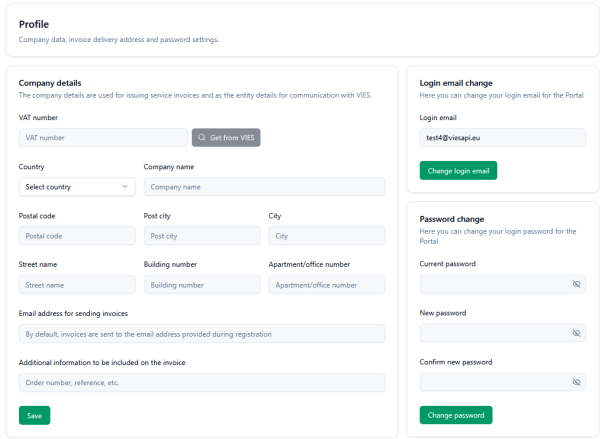
Profile tab is used to manage user and company data.
Company details: This section should be filled in with information used for invoicing and communicating with the VIES system. Users can manually enter the VAT number or use the “Get from VIES” button to retrieve data directly from the database. Other fields include: country, company name, postal code, post city, city, street name, building number, and office number.
Additionally, you can specify a dedicated email address to which invoices will be sent (by default, this is the login address) and include additional information on the invoice, e.g. the order number (PO number).
After completing or changing the data, do not forget to confirm the change by pressing the Savebutton.
Login email change & Password change: The profile section contains separate forms allowing you to change your login email address and change your current password.
Dashboard
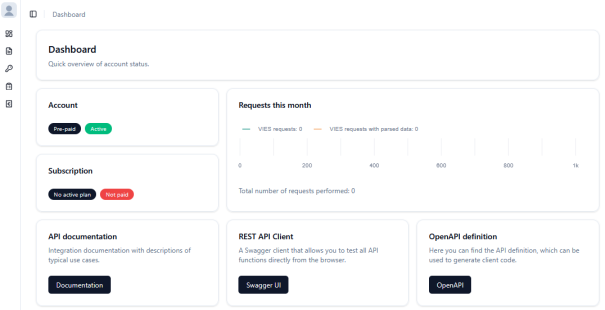
The dashboard is your account’s information center and provides a quick overview of key metrics. It includes the following panels:
Account: Account status and type (e.g. Pre-paid, Active).Subscription: Information about the current plan and its payment (e.g. Startup, Paid/Not paid).Requests this month: Line chart showing the number of VIES system requests broken down by VIES status and VIES status requests with parsed address data in the current month.- Quick links: Buttons leading to the
API documentation(“Documentation”), theREST API Client(“Swagger UI” – allowing you to test API functions from a browser), and downloading theOpenAPI definitionas aviesapi.yamlfile.
Subscription
This tab allows you to select and change your tariff plan.
EU VAT number and company details in the Profile tab.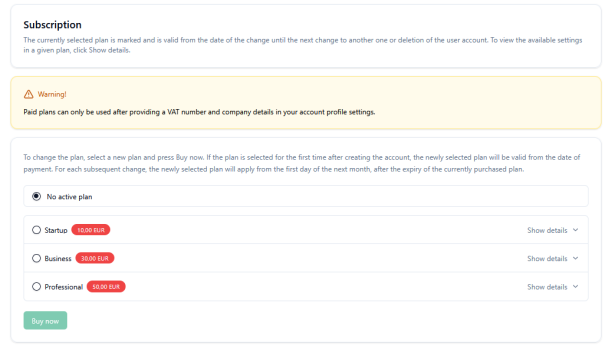
After selecting a plan and pressing the Buy now button , the user is transferred to the Payments tab.
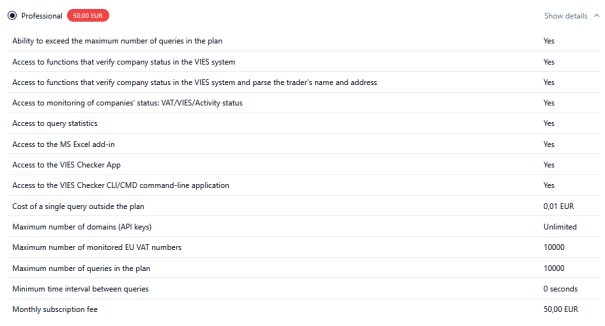
Plan details
Expanding the plan details (“Show details“) allows you to see exactly what it includes:
API keys
API keys are necessary to authenticate access to services via REST API, client libraries and all other tools provided by the service (applications and add-ons).
Identifier“) is public, while the key itself (“API key“) is hidden and can be copied.Action” menu
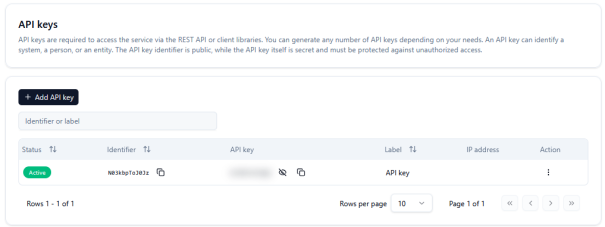
Add API key
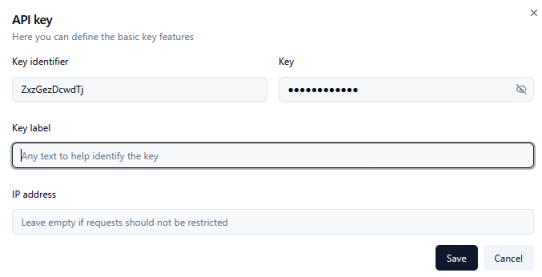
To generate a new key, click “+ Add API key“. In the form, you can define your own key label (“Key label“) to facilitate its identification and optionally restrict access by entering a specific IP address from which requests to the viesapi.eu service will be sent.
Billing
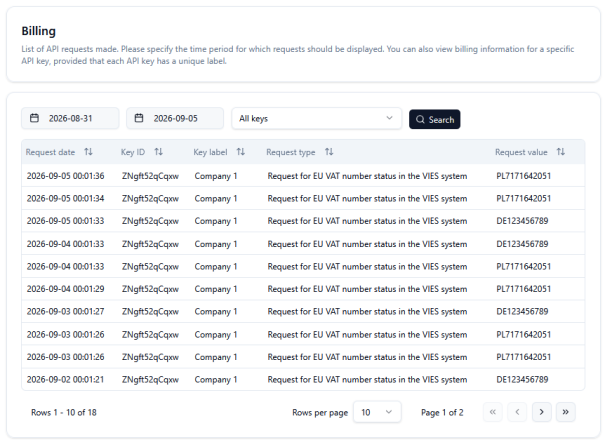
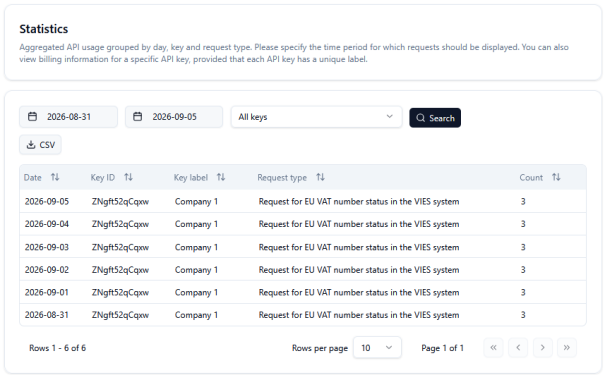
Billing: A detailed list of API requests. Users can filter the list by date and selected API keys. The table displays the request date, key ID, key label, request type (“Request for EU VAT number status in the VIES system“), and the requested value (specific EU VAT number).
Payments
View for prepaid account
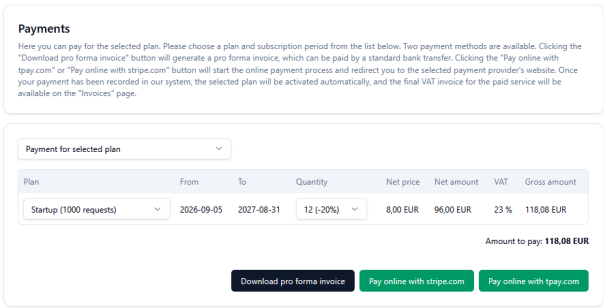
For Prepaid accounts , this section allows you to select a plan from the drop-down list, specify the validity period (with the possibility of a discount for longer periods, e.g. 20% for 12 months) and view the Net, VAT and Gross amounts.
The User can generate a pro forma invoice (“Download pro forma invoice“) for payment by bank transfer or pay online using the payment integrators Stripe.com or Tpay.com.
View for postpaid account
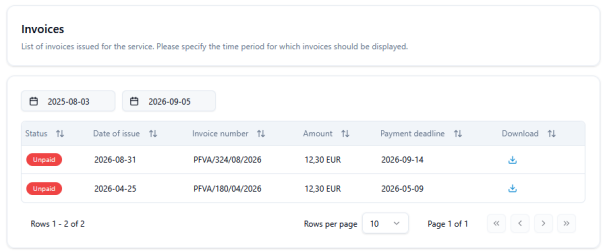
Postpaid account view , this section presents a list of invoices to be paid and allows you to download them as PDF files.
Orders
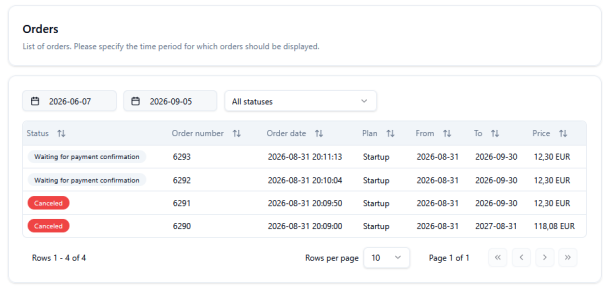
Orders: A record of user orders. Filter by date and order status. Visible items include order numbers, dates, statuses (e.g., pending payment confirmation, Canceled), and total prices.
Orders not paid on time are automatically canceled.
Statistics
Tab Available for Professional and Individual plans. It displays aggregated API usage by day, specific API keys, and query types, along with a count of calls made (“Count“). It also has the option to export the view to a CSV file.
Monitor
This tab is only available in the Professional and Individual plans.
It allows you to configure and automate checking the status of groups of VAT numbers at a given time.
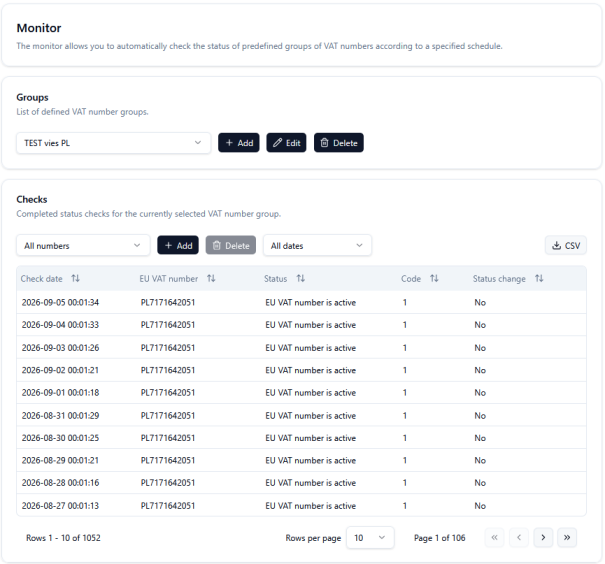
Groups: Users can add, edit, and delete groups. Groups contain EU VAT numbers that will be verified at specific cycles. The maximum group size is 10,000 EU VAT numbers.
Checks: A list of completed VAT checks. The table shows the check date, EU VAT number, status, response code, and whether there was a status change. Data can be exported to CSV.
A detailed description of how the EU VAT Number Monitoring service works is provided in the chapter: https://viesapi.eu/monitoring-eu-vat-numbers-in-vies-service/
Add group
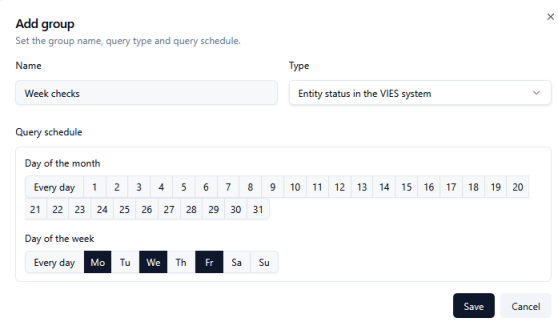
Adding a group definition involves entering its name and setting a schedule for its execution:
Edit group
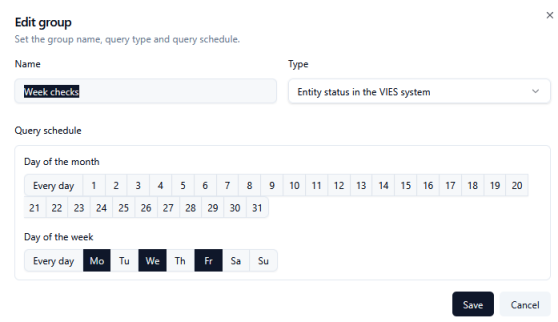
Modifying a group works the same way as adding one. Just remember to confirm your changes by clicking the Save button .
Delete group
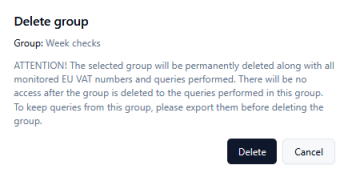
Deleting a group from the system means irreversible loss of the history for this data (export recommended before deletion).
Add numbers to selected group
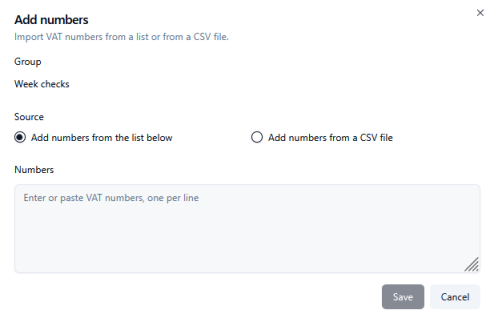
Adding numbers: VAT numbers can be imported from a CSV file to selected groups or simply pasted into the text box (one number per line). Remember to include the country prefix for each EU VAT number, e.g.: PL7171642051.
Logs
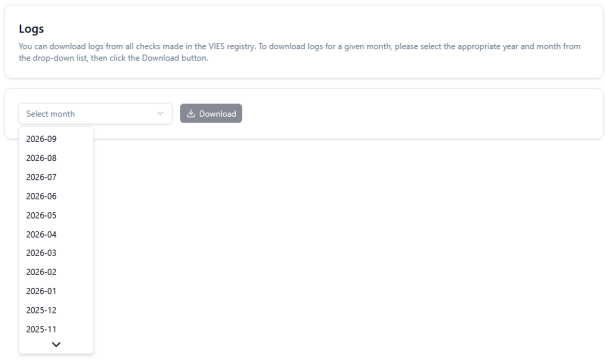
This tab is for Business, Professional, and Individual plan users. It allows for bulk downloads of full VIES verification logs. Users select the desired month from the drop-down list (e.g., 2026-09) and click the “Download” button.
Invoices
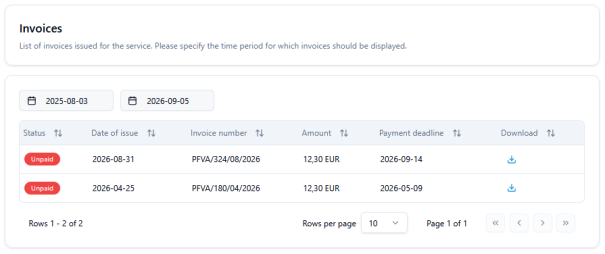
This tab provides a summary of issued invoices, with the option to filter by date. The list includes status (e.g., “Unpaid“), issue date, invoice number, amount, due date, and a button to download the document as a PDF file.